# Quick start
> Install Mili, add your first subscription, and turn on charge reminders. Get your subscriptions under control in five minutes.
https://miliapp.app/en/guide/getting-started/
Mili is a subscription manager and expense tracker. It shows how much you spend on subscriptions each year, reminds you before you’re charged, and can even track your actual income and expenses. There’s no account to create — just open it and go.
## Install Mili
Mili for Mac requires macOS 14 or later. Download it from the Mac App Store. The iPhone and iPad versions are coming soon.
## Add your first subscription
The first time you open Mili, Overview shows Start with Your First Subscription, with two ways to add one:
- **Add from Popular Services**: Mili includes 245 popular services from around the world. Select the ones you use to add them all at once, with the name, icon, category, and typical price filled in for you.
- **Add Manually**: Click Add Manually, or press ⌘N. As you type a service name, Mili suggests matches from its service library. Choose one, and the icon, brand color, and category are filled in automatically.
When you add services from Popular Services in bulk, each one’s First Billing Date is set to today and its amount is set to the typical price (or 0 if the service doesn’t have one). Once they’re added, open each one and change it to the amount you actually pay and your real billing date.
> [!TIP]
> Paying in a foreign currency? No problem. You can choose a currency for each subscription, and totals are converted to your base currency using exchange rates. See [Currencies and exchange rates](https://miliapp.app/en/guide/currencies/).
## Turn on charge reminders
When you add your first subscription, macOS asks whether Mili can send you notifications — choose Allow. From then on, Mili reminds you at 10 a.m. before each charge, 3 days ahead by default. You can set how many days ahead to be reminded for each subscription. See [Charge reminders and Upcoming](https://miliapp.app/en/guide/reminders/).
## See what you spend in a year
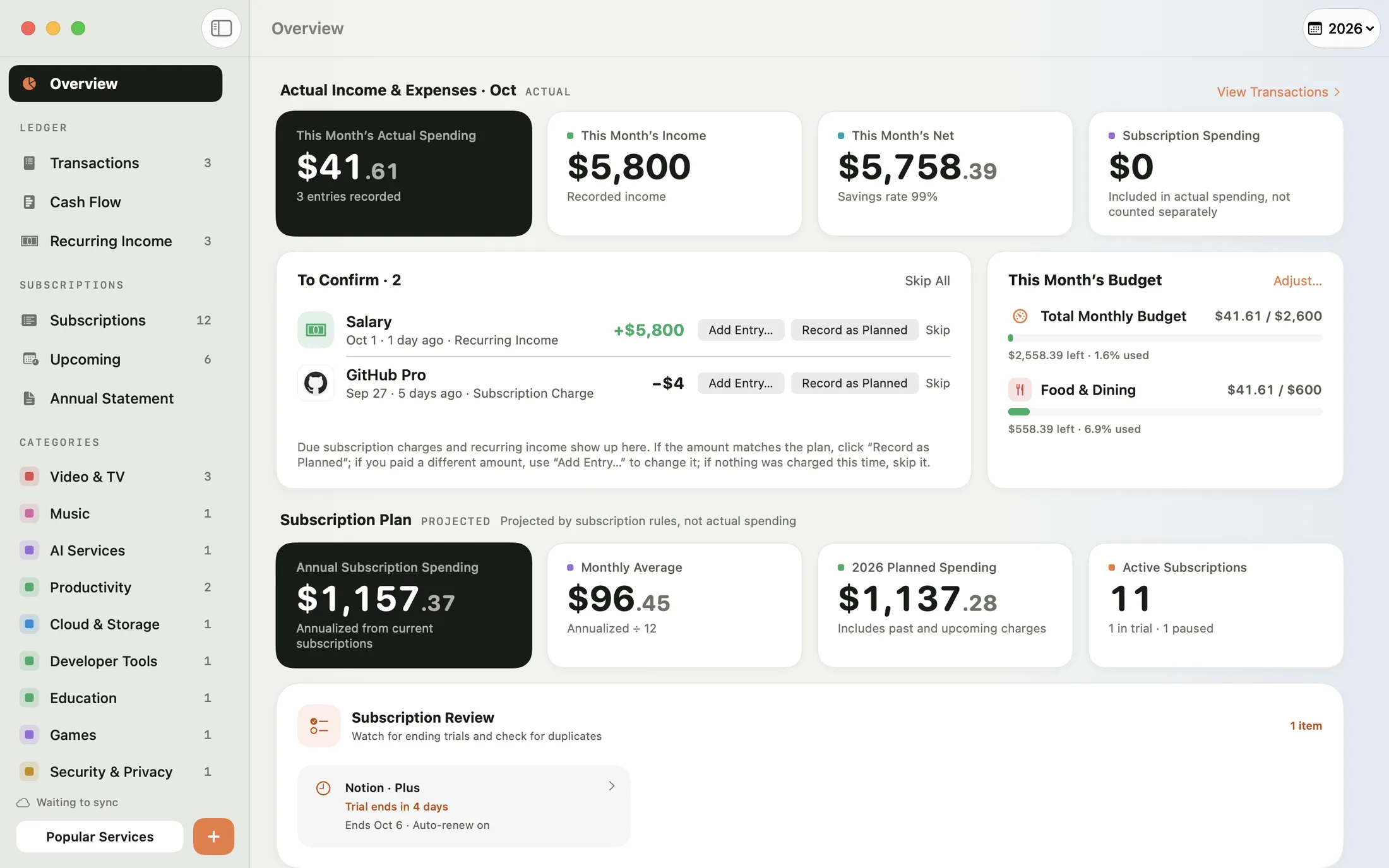
Overview shows your annual subscription spending, monthly average, spending by month, Share by Category, and Top Spending, plus the subscriptions due in the next 30 days. Subscription Review points out trials that are about to end and duplicate subscriptions to the same service. See [Overview, Subscription Review, and the Annual Statement](https://miliapp.app/en/guide/insights/).
## Next steps
- Want to record every real expense and income, set budgets, and sync across your devices? Take a look at [Mili Pro](https://miliapp.app/en/guide/pro/).
- Want a backup of your data, or getting a new computer? See [Backup, export, and import](https://miliapp.app/en/guide/backup/).